Client: a US viral-marketing and referral-rewards SaaS I have run as fractional CTO since its 2016 launch, 100K+ users Area: the campaign builder, specifically its drag-and-drop rich-text editor Type: debugging and root-cause story
In one paragraph
A “small” bug came in: in the campaign builder, the rich-text editor toolbar showed up when you dropped a new text element, but not when you clicked an element you had saved days earlier. The only workaround was a trick no real user would do. It looked like a one-line fix. It turned out to be three separate problems stacked under one symptom, and only one of them showed up in the error console. I found the other two by running the real product and watching what it actually did. The fix shipped with no database change and no risk to existing customer data.
Why it mattered
The builder is where customers design their campaigns. If they cannot format text on an element they already created, the core editing experience is broken for every returning user, which is most of them. A bug that only hits “things you saved earlier” is the worst kind, because it does not show up when you build something fresh to test it. It hides in exactly the path real users take and the path a quick test skips.
The three root causes, plainly
For the readers who just want to know what was actually wrong:
- The editor was being started twice on the same element. Opening a saved element ran the “create editor” call again on markup that already looked like an editor, which the library rejects.
- The editor’s stylesheet was never loading on the page. The toolbar was being built correctly in the DOM, then rendered with no styling, so it landed at the top of the page instead of floating by the text. It was there, just invisible in practice.
- The reuse check erased its own memory. A guard meant to reuse an existing editor identified it by a marker that a cleanup step stripped, so on a second click it failed to find the live editor, recreated it, and tore down the working one.
The rest of this is how I got from the symptom to those three, because the path is the part that is actually useful.
The report and the first clue
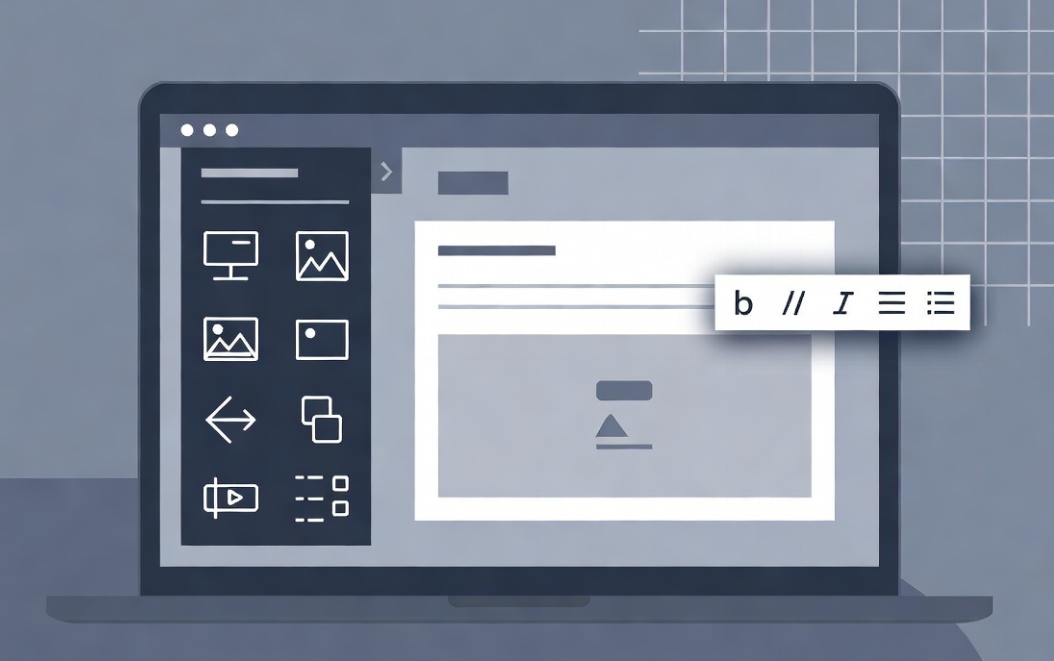
Drop a new heading or rich-text element onto the canvas and the toolbar appears immediately. Open a campaign saved a few days ago, click a heading that is already there, and the toolbar is gone. The element is still editable and the settings sidebar opens, but the formatting bar never shows. The one workaround was to drop a new element first, after which the old ones started working too. No real user is going to do that.
The console had one useful line: an error saying the editor was being created on an element that was already in use. So the first cause was right at the surface. The code called the “create editor” function every time you opened an element, with no check for an existing one. A freshly dropped element is clean, so create works. A saved element still carries the editor’s leftover markup in the stored HTML, so create chokes.
I added a guard. Before creating, check for a live editor and reuse it. Strip the leftover markup from saved HTML so a clean create can run. The console error went away. I asked for a confirm.
Still broken, so I stopped reading code
The console was clean, the editor reported “initialized”, and the toolbar was still missing. That told me the error was real and worth fixing, but it was not the reason the toolbar was absent. I had fixed a symptom. The only way forward was to see the real thing happen in the real app, not infer it from source.
I logged into the running product and drove the builder in a real browser session. I clicked the saved heading and inspected the toolbar in the live DOM. It existed. It was just rendering at the top of the page, full width, instead of floating next to the text.
Its layout style was set to “static” when it needed to be “absolute”. The library had even calculated the correct coordinates and written them onto the element, but with “static” those coordinates do nothing. So the toolbar was being built correctly and then laid out with no styling at all. The cause: the editor’s stylesheet was not on the page. Not late, not partial, just absent. To prove it, I injected the stylesheet by hand while the broken toolbar was on screen. It snapped into its correct floating position instantly.
Why a stylesheet that was “imported” never loaded
This is the part worth understanding, because it is a trap that hides in a lot of modern front-end builds.
The editor’s CSS was imported in the code the normal way. But this app does not let the build tool inject stylesheets automatically. It links them from a fixed list the server controls. The editor’s CSS lived inside a piece of code that only loads on demand, so it was compiled into the build but never actually linked on the builder page. The import existed. The file existed. The link on the page did not.
That also explained the “drop a new element first” trick. Dropping happened to pull that on-demand code in for the session, and its styles came along by accident. Clicking a saved element on a fresh page did not trigger that path. The workaround was a coincidence, not a feature.
The fix was to stop depending on the coincidence. I added a dedicated stylesheet for the builder pages and linked it directly, so the styles are always present before the first click. I scoped it to the builder so the rest of the app does not carry the weight of an editor it never uses.
The third problem, caught while testing the fix
With styles loading, the toolbar finally appeared on the first click of a saved element. But testing every path turned up one more. Click element A, toolbar shows. Click element B, toolbar shows. Click back to A, and the toolbar flashed and vanished.
My earlier reuse guard had a weak spot. It identified an existing editor by a marker attribute on the element, but my own cleanup step stripped that attribute. So on the second visit the guard could not find the still-alive editor, tried to recreate it, and destroyed the working one in the process.
I changed the guard to identify the editor by the library’s own permanent handle to its element, not by a marker anything could erase. That handle cannot drift out of sync. After that, switching back and forth between elements just worked, every time, with no flash and no duplicate editors piling up.
The result
A single click on any element, new or saved, opens its editor with the toolbar visible right away. No trick, no second click, no console errors. I verified all of it in the live product: first open, repeat clicks, switching between elements, the lot.
One thing I deliberately did not touch was how content is saved. The save format was off limits for this fix, so the solution reads the existing saved data as-is and cleans it up at display time. No database change, no migration, no risk to anyone’s existing campaigns.
FAQ
Why was the error console not enough to fix the bug? The console showed only the loudest of three problems. After fixing it the toolbar was still missing, which proved the console error was real but not the cause. The other two problems produced no console error and only showed up by running the real product and watching what it did.
How do you debug a bug that only happens on saved data, not new data? Reproduce it on the real saved data, not a fresh test. A bug that only hits things you saved earlier hides in exactly the path real users take and the path a quick test skips. Open a real saved record in the live product and inspect what actually renders.
Can you fix a production bug without a database migration? Yes. When the save format is off limits, read the existing saved data as-is and clean it up at display time. That ships the fix with no database change, no migration, and no risk to existing customer data.
What does running the real product mean in debugging? It means driving the actual running application in a real browser session and inspecting live behavior, instead of inferring the cause from source code. Two of the three root causes here were invisible in the code and the console, and only appeared when the live product was observed directly.
What looked like a one-line fix was three separate problems wearing one coat: an editor created twice, a stylesheet that never loaded, and a reuse check that erased its own memory. The console only showed the first one. The other two only showed up by running the real product and watching what it did. That is almost always where the real bug lives.